
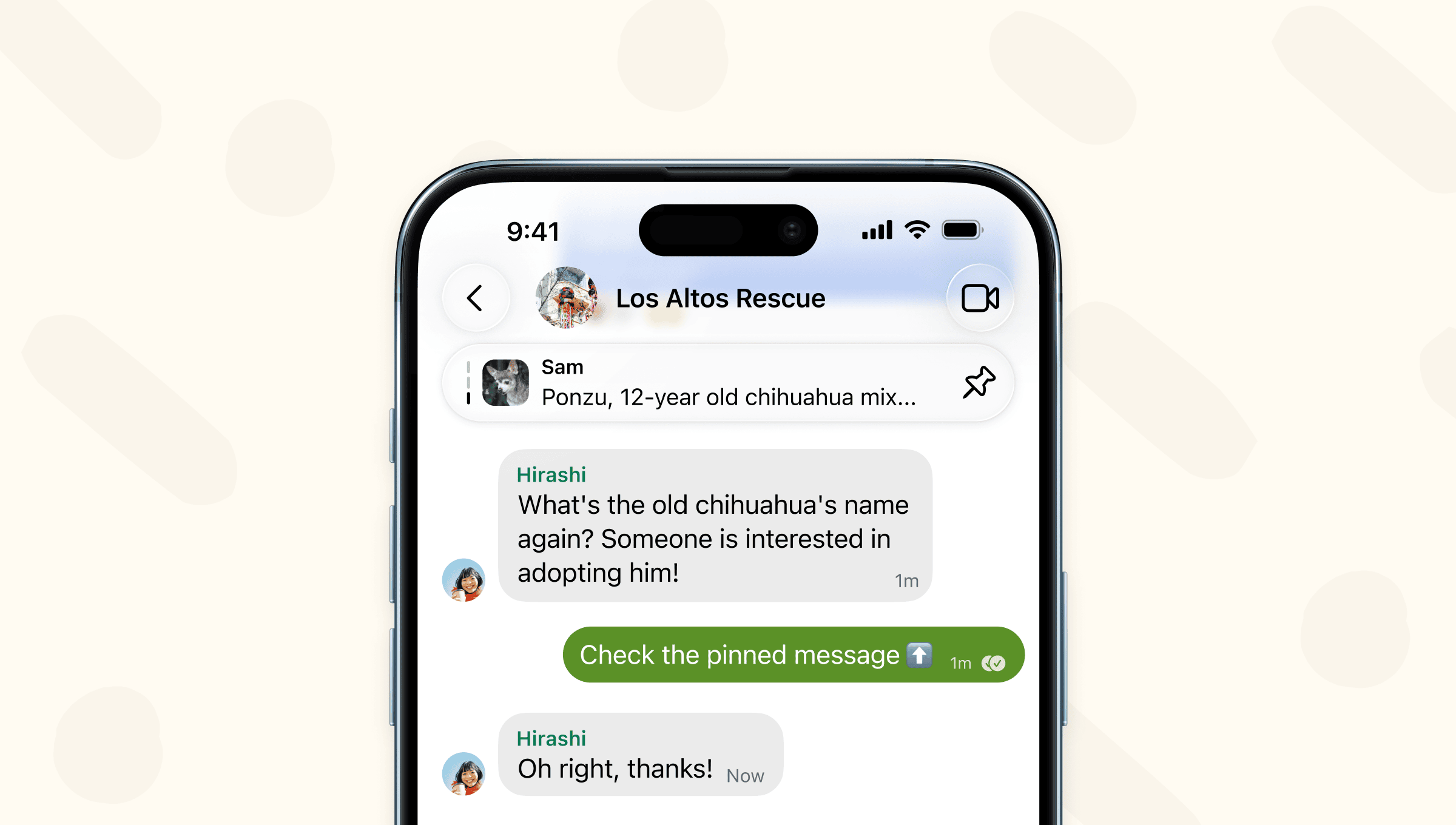
Your most frequently asked questions, dinner reservations, and vacation itineraries are already top of mind. Now they can be top of chat as well.
In the latest version of Signal rolling out now, you can pin your most important messages to the top of your 1-1 and group chats.
To pin a message (or photo, poll, file), long press on that message. When you pin a message, other members of the chat will see it pinned as well if they were in the chat at the time the message was sent.
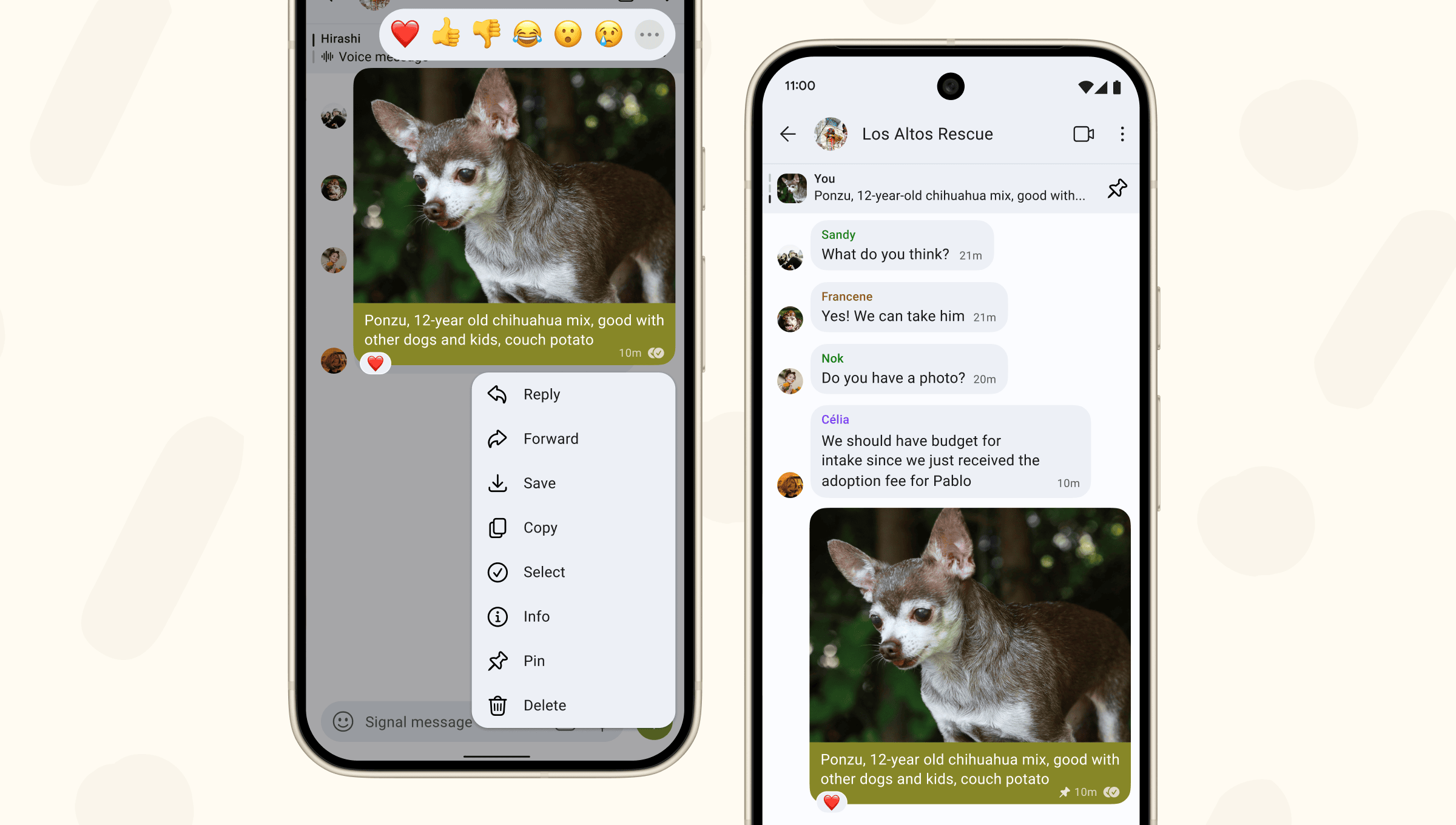
Chats can have up to 3 pinned messages at once. Group admins can configure who is allowed to pin messages in group settings.
When pinning a message, you’ll select how long you want to keep that message pinned to the top of the chat: 24 hours, 7 days, 30 days, or forever. The message will automatically unpin after the timeframe elapses. Or, if you want to unpin a message earlier, tap the pin icon to manually unpin.
If you or someone else pins a message after the chat already has the maximum 3 messages pinned, the message that’s been pinned the longest will automatically be unpinned to make room.
You won’t see a pinned message if you don’t have the original message in your chat history. Commonly this would happen if you join a group after the message was sent or if you deleted the original message. Disappearing messages will be unpinned when their timer expires and the message is removed from the chat.
To try out new features before they launch and to join the community providing early crucial feedback, join our beta program.