
Last September, we introduced an optional new way to automatically keep your Signal data safely and securely backed up so that important messages and memories can be easily recovered if something unexpected happens to one of your devices. We’ve been listening to your feedback and working hard on several improvements over the past year.
We hinted at several of these “future plans” when Signal Secure Backups were first announced, and the future is now available on all platforms with the launch of iOS version 8.30 today.
Here’s an overview of everything that’s changed since the initial release.
Backing up to a Destination of Your Choice
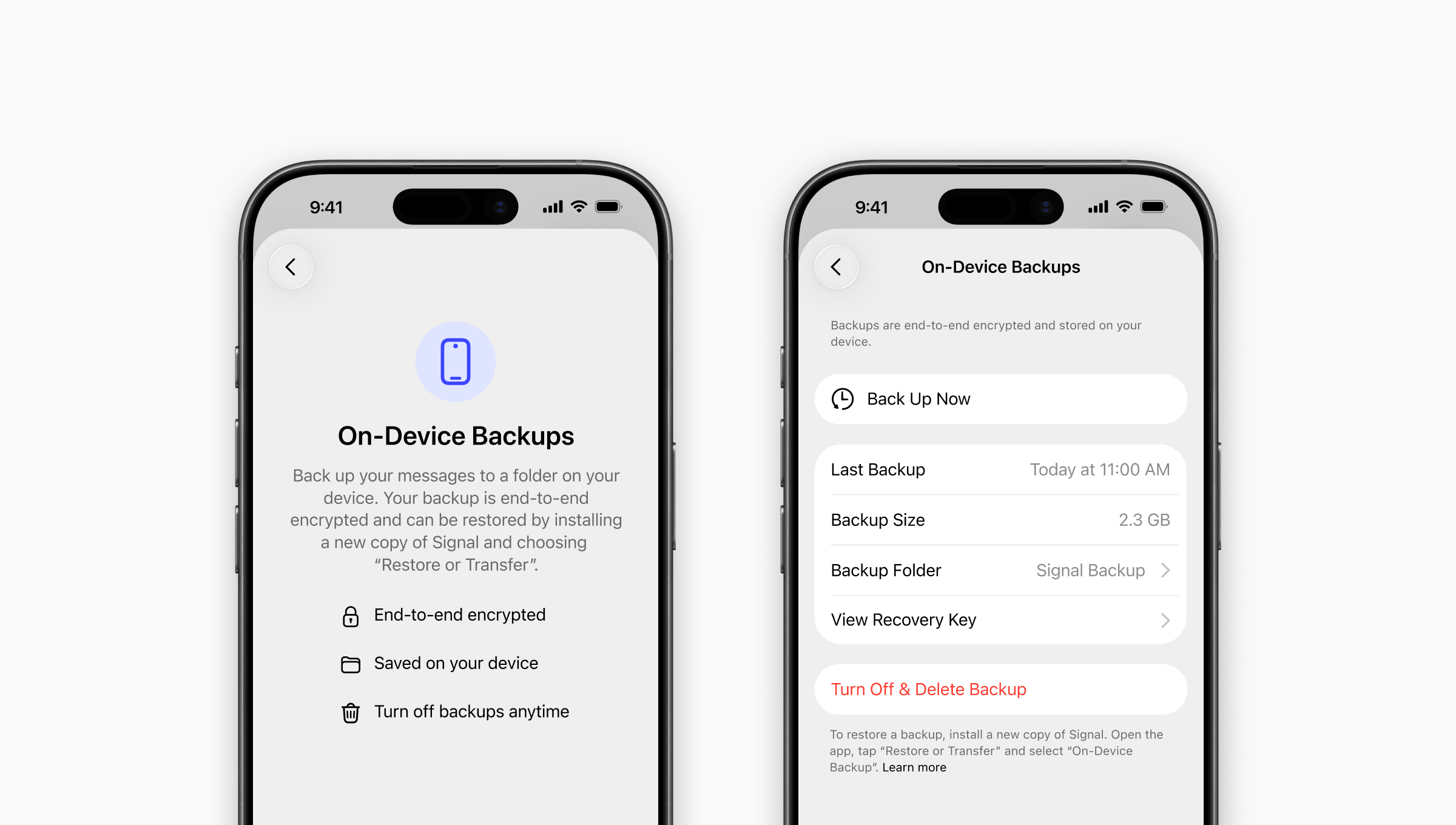
Available on Signal Desktop and Signal iOS for the first time, and fully revamped on Signal Android, on-device backups provide another way to preserve an end-to-end encrypted copy of your Signal messages.
On-device backups have been available on Android for many years, but they now utilize the same cross-platform format that’s supported by Signal Desktop and Signal iOS, and they incorporate additional improvements as well. Previously, the local Signal Android backups included everything in a single archive, so daily snapshots took up a lot of extra space. Now backup media gets stored in a separate folder so it’s easier to periodically sync, and duplicate files are only stored once, which also helps save space if you decide to mirror an on-device backup to an external hard drive or NAS server on your home network.
Cross-platform Support
Now you can bring your Signal chats with you when you get a new device, even if you decide to switch to a completely different platform. Signal Secure Backups and on-device backups can be created and restored across every supported operating system: Android, iOS, Linux, macOS, and Windows.
Storage Optimization
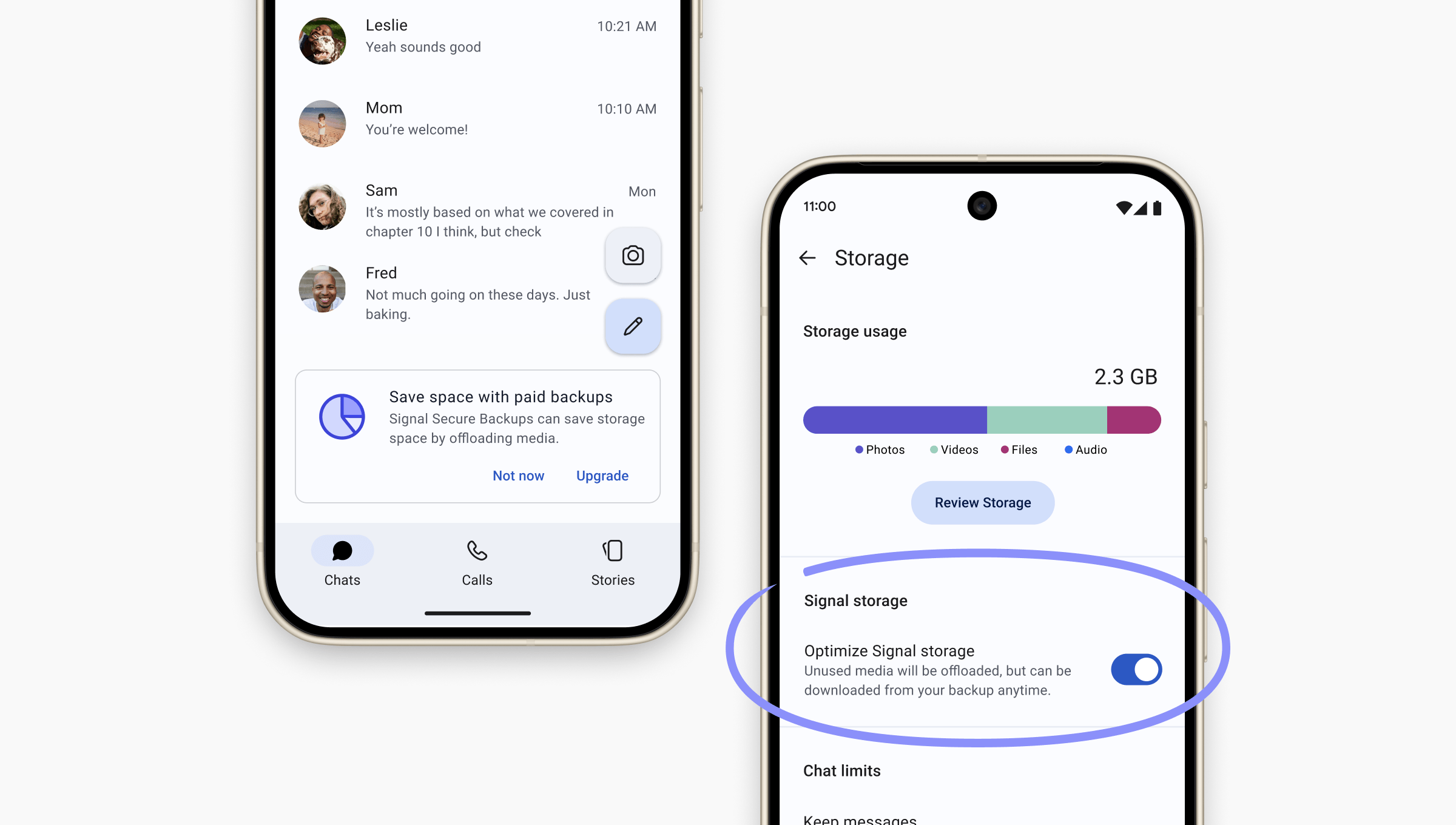
Make room for new memories by automatically optimizing storage space and offloading older photos and videos. When this feature is enabled, a small thumbnail remains saved on your device in place of the original file. The full-size copy remains securely stored in your paid backup account, and it can be seamlessly retrieved and displayed when you tap on that attachment.
Offloading unused media can significantly reduce the amount of storage space that Signal is using. For example, 5,120 megabytes (a.k.a. 5GB) of unused media becomes approximately 600 megabytes after enabling the Optimize Signal Storage setting, leaving you with a lot more room to receive new images and videos.
Attachment Backfill for Linked Devices
For a small monthly fee that helps cover storage costs for end-to-end encrypted attachments, up to 100 gigabytes of media can be backed up with a paid Signal Secure Backups plan. The free plan still lets you keep your text messages backed up, but only covers the last 45 days of media.
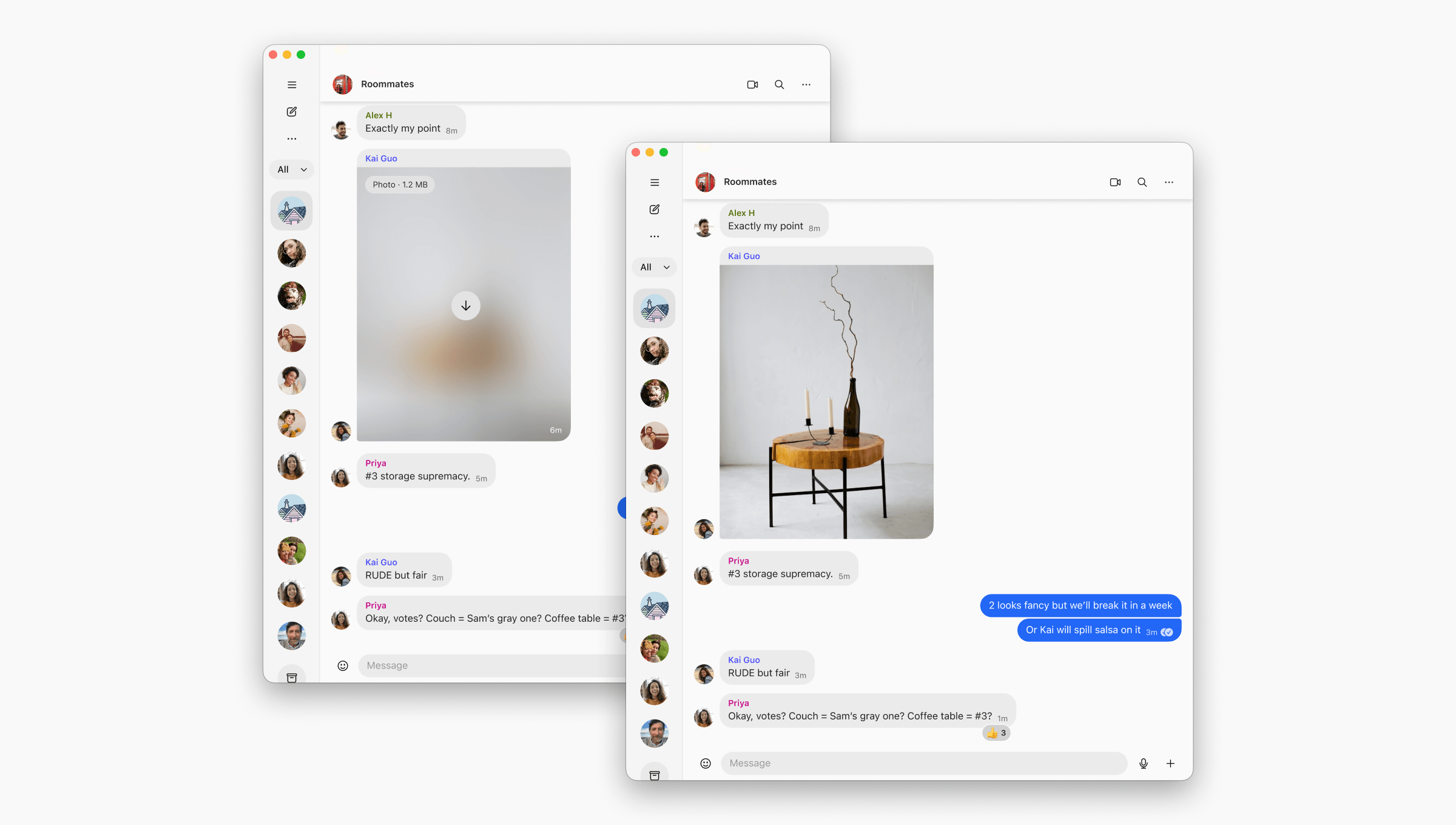
Attachment backfill can help bridge this gap by synchronizing media and attachments across linked devices. For instance, if you open a message thread on a newly linked laptop and scroll beyond the 45-day limit, Signal Desktop can now securely request a copy of any missing files directly from your primary device as an end-to-end encrypted attachment.
You could always forward yourself one of your own messages too, but this simplifies the process by automatically restoring attachments and media from your primary device with a single tap.
Some Constraints and Optimizations
With every new feature idea comes the reality of building performant, robust software that runs reliably and efficiently on millions of devices. We made a few decisions in the process of building these new backup features that might not be exactly what we’d like in a magical world where the bytes and bandwidth are free and software systems never fail. Some may see these as limitations; we see them as trade-offs necessary for a real-world deployment.
Signal Secure Backups
- For the sake of efficiency, very long messages are sent as text attachments. Individual messages up to 128 kilobytes (approximately 1/4 of an average book) can be backed up for free, but larger messages are subject to the same 45-day limit for media attachments on free accounts.
- In order to conserve upload bandwidth on mobile connections, your Signal client only needs to back up a single encrypted copy of a given attachment even if you receive multiple copies of the same file. As an additional optimization, when you enable a paid backup account for the first time, existing end-to-end encrypted attachments within the 45-day download expiration window can be transferred to your new paid backup account without having to be uploaded again.
- Attachments are never de-duplicated across accounts and they are always end-to-end encrypted, but specialized users with unique requirements can choose to utilize on-device backups and synchronize files to their own server for uncommon use cases where copying end-to-end encrypted attachments and performing basic per-user de-duplication on end-to-end encrypted attachments are considered relevant metadata.1
- The hosted Signal Secure Backups service implements another layer of security using a supplemental cryptographic key that rotates daily. This key is securely stored in a Trusted Execution Environment, and it cannot decrypt any backups without your recovery key, which provides the primary layer of end-to-end encryption.
- The sole purpose of this additional key is to add a layer of forward secrecy to your end-to-end encrypted backups. Signal clients also use remote attestation to ensure and verify that the old key is discarded every time it is replaced. Trusted Execution Environments are currently the best way to protect this supplemental key, but this may change in the future as additional research and improvements occur in this space.
On-device Backups
- With Signal Secure Backups, your phone can request that the server securely copy recent end-to-end encrypted attachments from ephemeral storage to get a head start on backing up the last 45 days of media.
- For an on-device backup, everything needs to be copied from scratch, and this may result in using more bandwidth or disk space depending on your chosen storage location.
- Unlike Signal Secure Backups on a paid/free plan, given the need to support any generic storage layer (a personal drive, a NAS server in your house, third-party storage services, etc.), on-device backups cannot utilize the same Trusted Execution Environment described above to provide forward secrecy.
- Your on-device backup recovery key can decrypt all past backups wherever they are stored, instead of only the most-recent backup.
- For example, if you’re storing backups on a USB drive, you may want to periodically delete previous backups. As always, it’s important to keep your recovery key safe and never share it with anyone. Signal Android and Signal iOS can also integrate with the password manager of your choice to store this information.
- Signal Secure Backups and on-device backups in Signal currently exclude disappearing messages that are scheduled to vanish within 24 hours.
- When you use the hosted Signal Secure Backups service we provide, a new backup is created every 24 hours and the previous backup is automatically removed. However, on-device backups work differently, and the storage layer is separate from the on-device backup process so this cannot be automated in the same way.
- Expired disappearing messages in an on-device backup are automatically skipped during the transfer process when you restore that backup, but you may want to take additional steps such as setting a shorter expiration timer for disappearing messages in on-device backups.
Thank You, Next
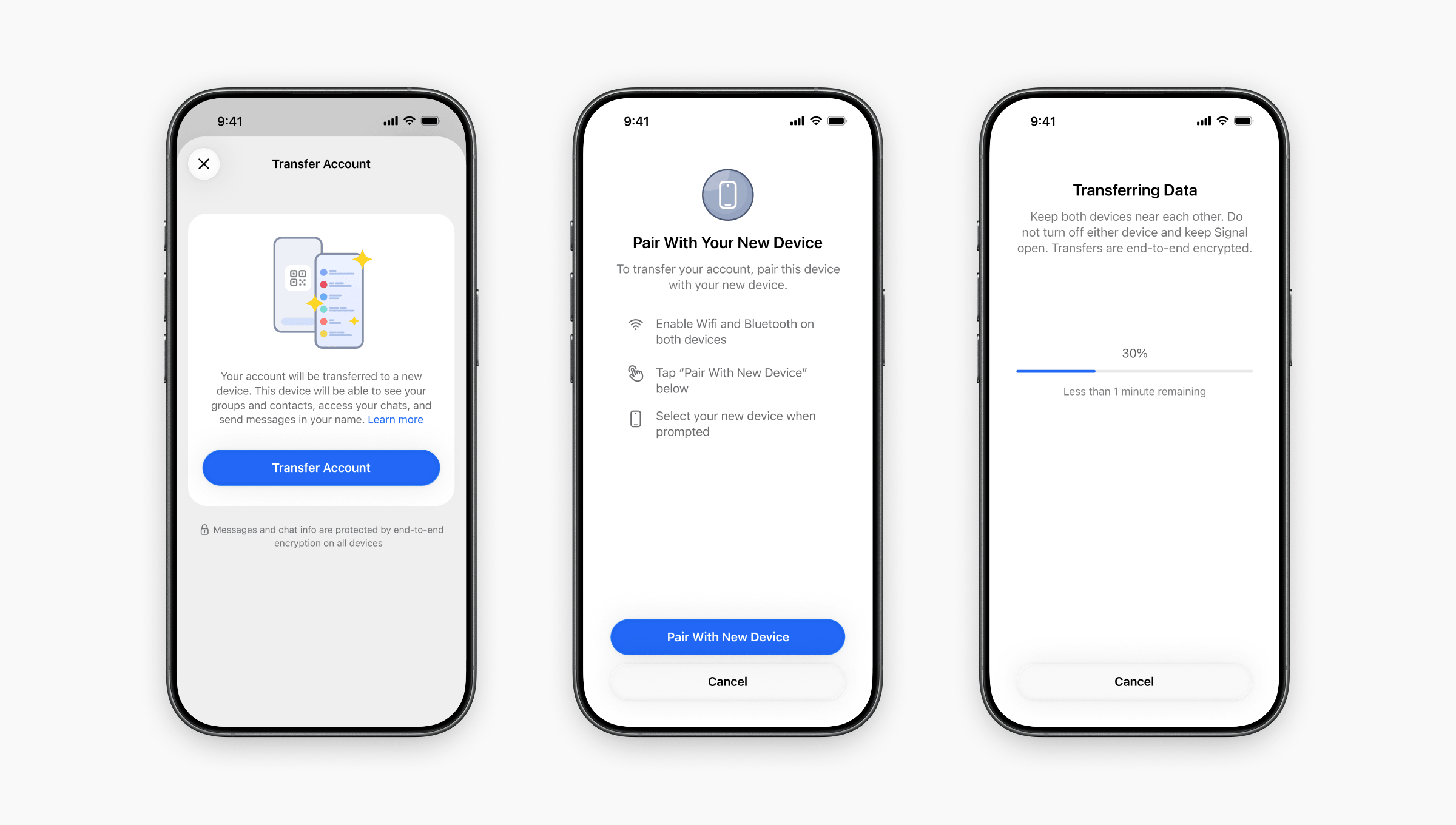
Also available in the latest iOS release, and just in time for your next upgrade, the revamped device-to-device migration experience makes it easier than ever to securely transfer your Signal information from an old iPhone to a new iPhone over a local end-to-end encrypted wireless link using Wi-Fi Aware networking for dramatically improved speed and reliability too.2
Whether or not you choose to subscribe to a paid backup plan, we hope these features give you more control over how to manage and preserve your Signal data while providing new options for keeping your messages safe.
This wraps up the first phase of the backups project, but we’re hard at work on several non-backup improvements too.
We’d like to express our sincere appreciation for everyone who gave us valuable feedback throughout this process, especially those of you who helped us test new functionality and ideas during the beta period 💙